
On this page
Interface previews
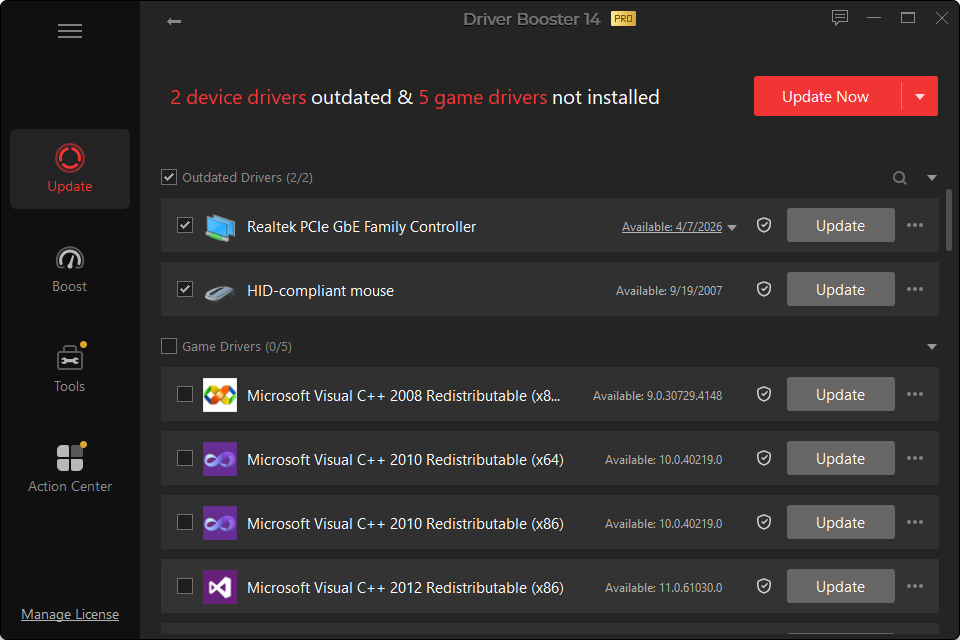
Network drivers are unusually important because a failed update can remove the connection needed to download the fix.
Before changing an Ethernet or Wi-Fi driver, keep an offline recovery option when possible.
Signs of a Network-Driver Problem
- the network adapter is missing in Windows;
- Device Manager shows a warning icon;
- Wi-Fi disappeared after reinstalling Windows;
- the adapter repeatedly disconnects while other devices stay online;
- the network stopped immediately after a driver update;
- Windows reports the device cannot start.
Problems That Are Often Not the Driver
A driver update will not fix:
- router or ISP outage;
- weak Wi-Fi signal;
- incorrect Wi-Fi password;
- damaged Ethernet cable;
- DNS failure affecting every device;
- disabled airplane-mode/radio settings;
- captive portal login.
Test another device on the same network before assuming the PC driver is at fault.
Safe Network Update Process
- Record the adapter name and current driver version.
- If possible, keep a copy of the current or replacement package.
- Create a restore point.
- Update the adapter.
- Restart.
- Test local network and internet access.
- If the problem is worse, roll back.
Fresh Windows Installation With No Internet
This is where offline driver recovery is most valuable. If Driver Booster’s offline network functionality is unavailable to you, use another connected device to obtain the exact adapter or PC-model network package and transfer it by USB.