
On this page
Interface previews
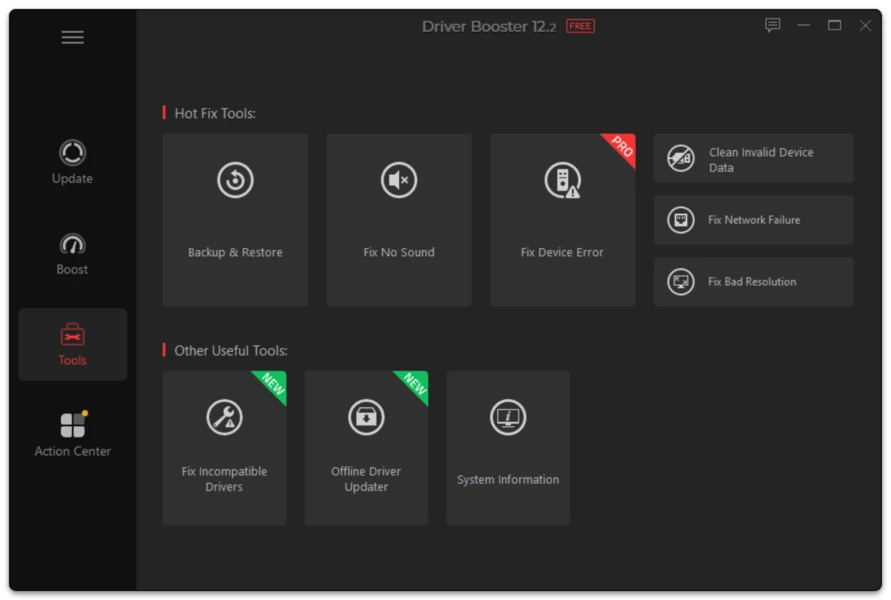
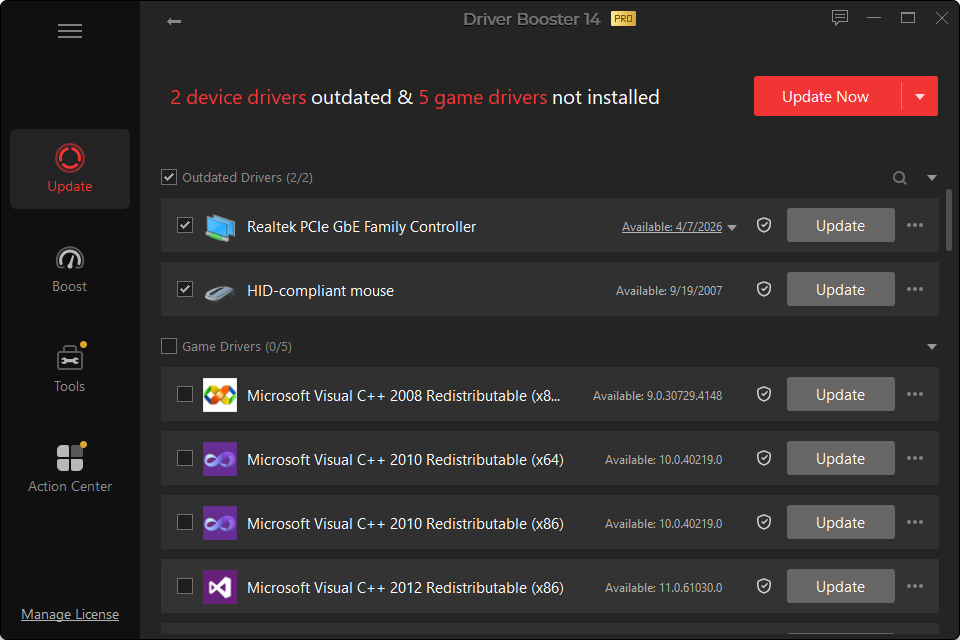
When internet access disappears immediately after a network-driver update, start with the adapter rather than resetting every Windows networking component.
1. Check Whether the Adapter Still Exists
Open Device Manager and expand Network adapters.
If the adapter is missing:
- choose Scan for hardware changes;
- restart;
- check for unknown devices.
2. Check Device Status
A Device Manager error code can indicate whether the driver failed to start.
3. Roll Back
If Roll Back Driver is available, use it. Reboot and retest.
4. Reinstall a Known Working Package
If rollback is unavailable, use a previously backed-up driver or an offline package prepared for that adapter.
5. Only Then Reset Networking
Network reset can remove/reinstall adapters and clear configuration. It is useful when the adapter driver is working but Windows networking remains corrupted.
If You Have No Internet
Use:
- Ethernet if Wi-Fi is broken;
- phone USB tethering if supported;
- another computer and USB storage;
- Driver Booster’s offline-network workflow if your edition supports it.
Do not download random “universal network drivers” without matching the hardware.