
On this page
Interface previews
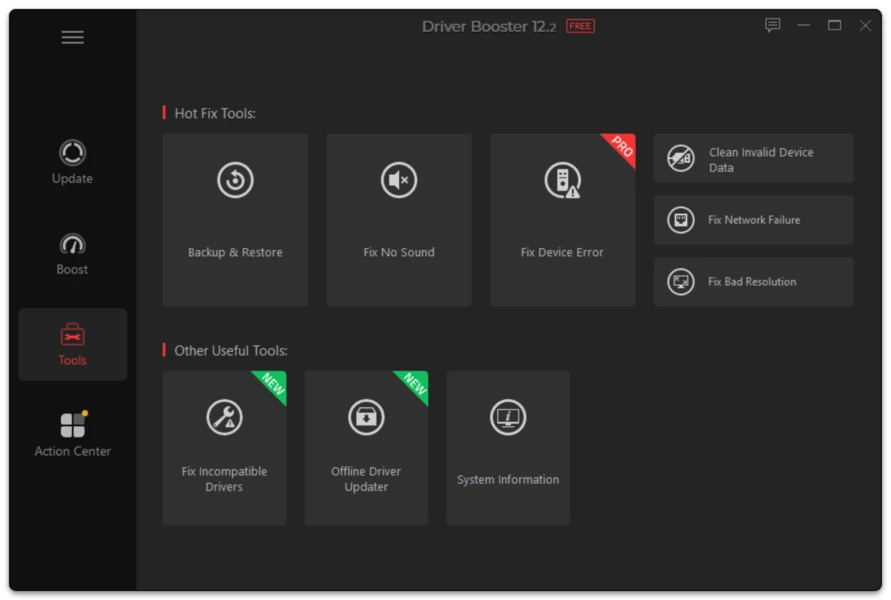
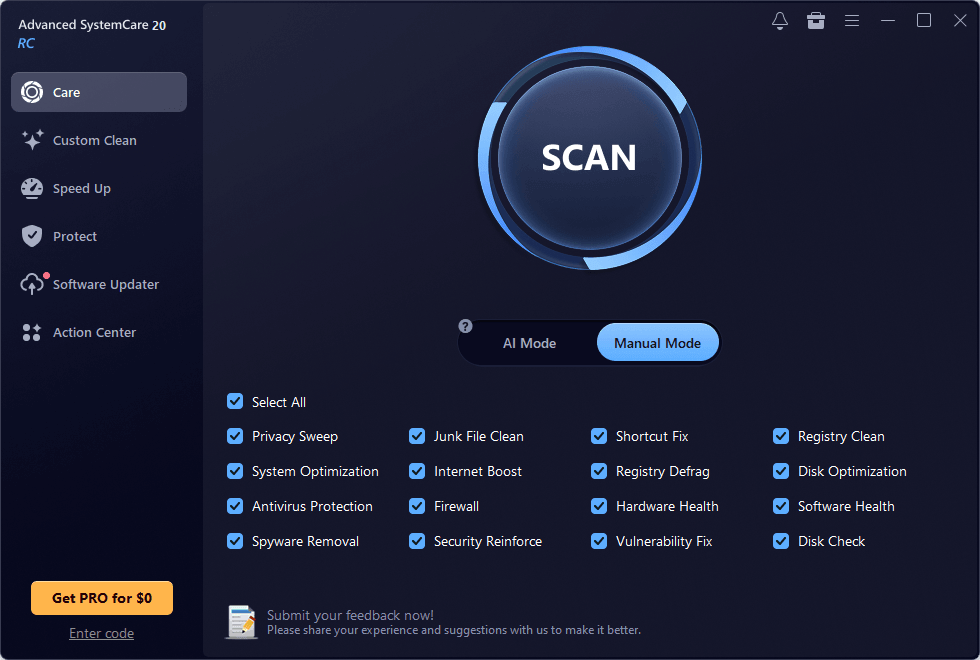
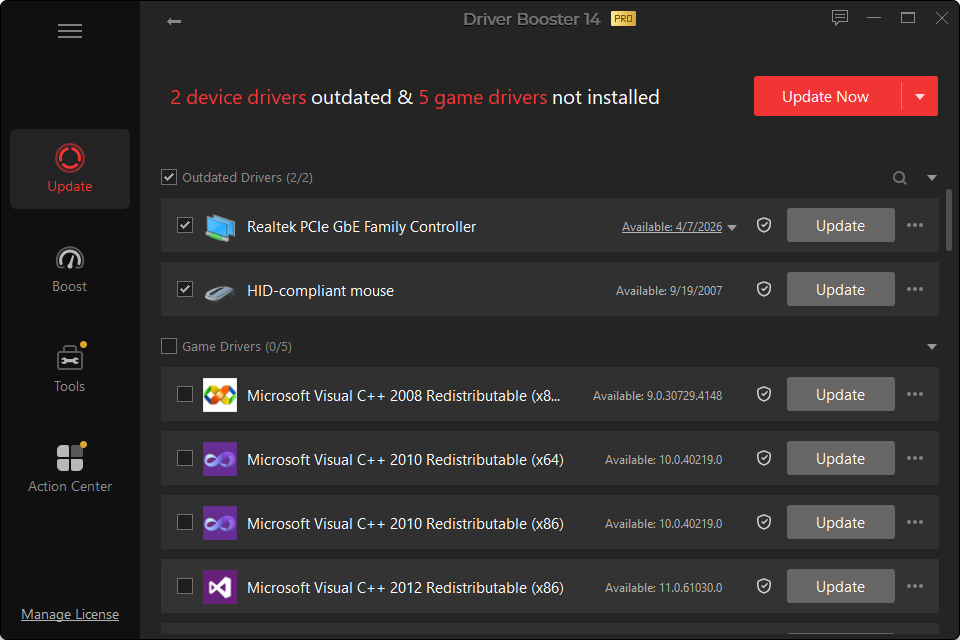
Driver Booster Free is the no-cost edition of the Windows driver updater. Its main purpose is straightforward: scan the PC, identify hardware with missing or outdated drivers, show available updates and let the user install supported changes.
The Free edition is enough for many people who only need an occasional manual driver check.
Who Is Driver Booster Free For?
Free is a sensible starting point if:
- you recently reinstalled Windows;
- Device Manager shows an unresolved device;
- a graphics, audio or network device needs a newer driver;
- you want to see which drivers the program identifies before deciding whether to use it;
- you maintain only one personal PC and do not need scheduled automation;
- you prefer to make driver decisions manually.
A paid edition is not automatically safer simply because it offers more features. Safety comes from correct hardware matching, sensible update choices and the ability to recover when a change causes a problem.
What the Free Edition Does
Scans installed hardware
Driver Booster identifies devices and compares their installed drivers with available database entries.
Shows update candidates
The results screen groups devices with available changes so you can review them in one place.
Installs selected updates
You can choose which supported changes to install rather than searching for each device package separately.
Supports current Driver Booster 14 scanning features
The version 14 generation introduces multi-version scanning and a much larger driver database. Availability of specific choices can depend on device and edition.
Includes general maintenance functionality
The application also contains driver-related repair and gaming tools, although advanced or automated functions may be reserved for PRO.
What Free Does Not Replace
Driver Booster Free does not replace:
- Windows Update;
- a PC manufacturer’s firmware/BIOS utility;
- an antivirus;
- a GPU control application;
- hardware diagnostics;
- a full backup strategy.
If a laptop manufacturer distributes a device-specific BIOS, firmware, power-management package or custom hotkey driver, treat it separately from a generic driver-updater result.
Free vs PRO: The Practical Difference
Free is mainly manual. PRO is more automated.
PRO adds capabilities such as scheduled scans, expanded automatic updating, automatic multi-version backups, offline network-driver support and additional device-repair functions.
For a person who opens Driver Booster twice a year and manually selects one or two drivers, Free may be entirely sufficient. For someone maintaining multiple PCs or frequently repairing machines, automation and recovery features can save time.
Tips for Using the Free Edition Well
- Scan only when you have enough time to review the results.
- Start with drivers related to an actual problem.
- Avoid changing several critical categories at once.
- Keep System Restore enabled.
- Restart between important changes when requested.
- Test the device after the update.
- If the new driver is worse, roll it back rather than stacking more changes on top.
FAQ
Does Driver Booster Free expire?
The Free edition is intended as a no-cost tier. PRO functionality requires a paid license.
Can Free update graphics drivers?
It can identify supported graphics-driver updates. Review the proposed GPU version and why you need it before installing.
Is Free enough after reinstalling Windows?
It can be useful, but start by completing Windows Update and checking Device Manager. If drivers remain missing, a broader scan can help locate them.
Does Free back up every driver automatically?
Automatic multi-version driver backup is a PRO-oriented feature. Always verify what recovery options are available before updating critical hardware.