
On this page
Interface previews
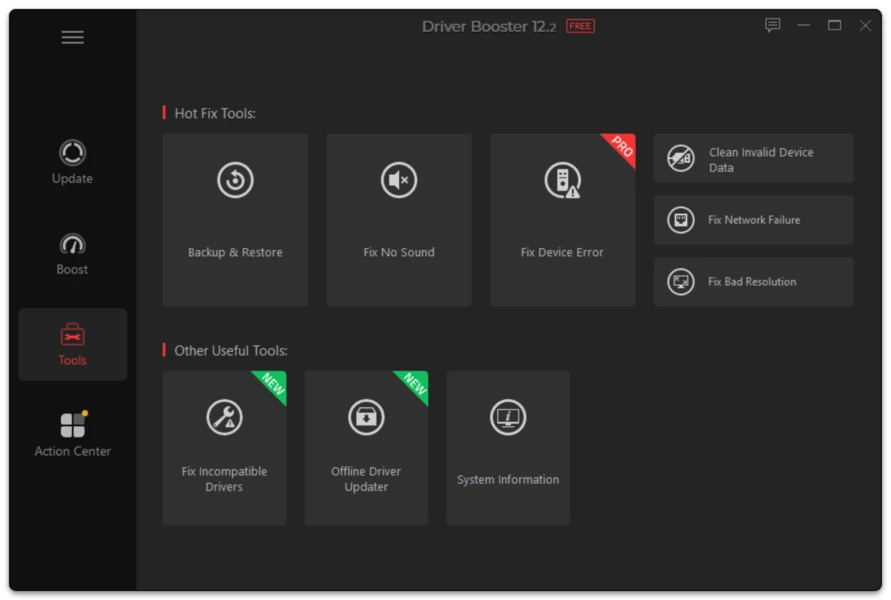
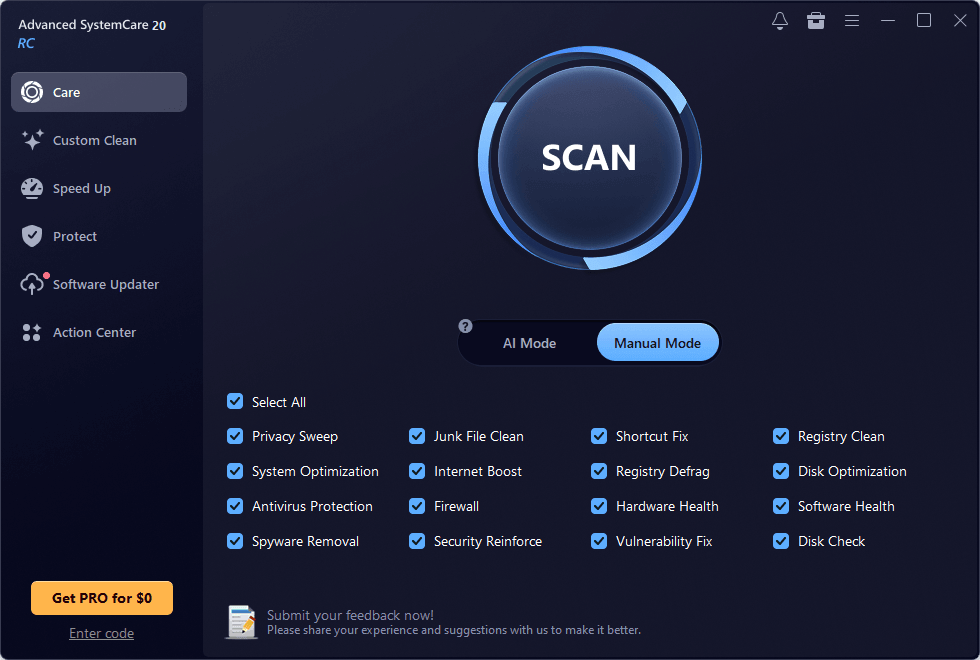
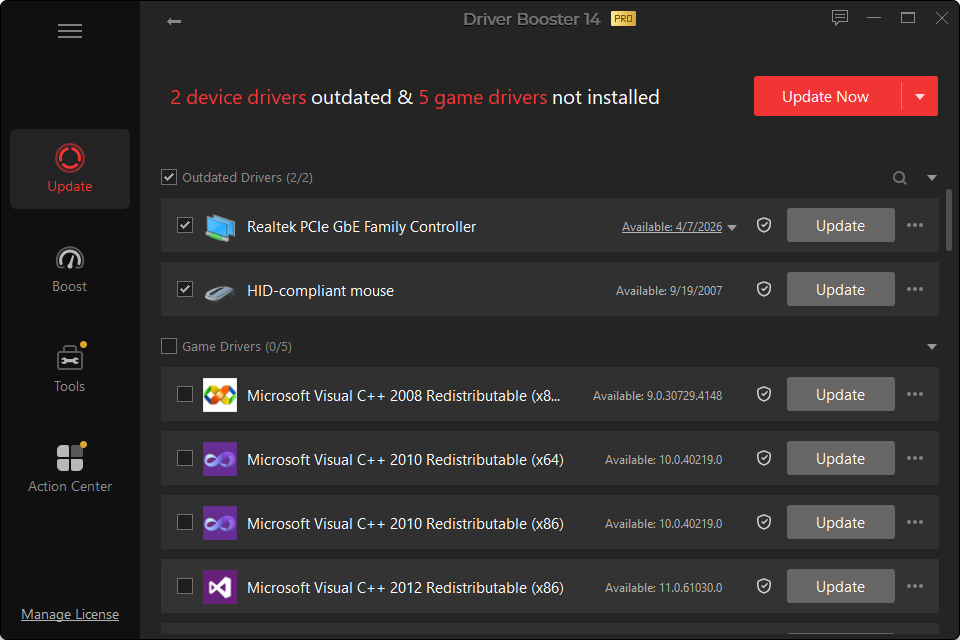
Updating a driver is not housekeeping for its own sake. The goal is to install the most suitable software for a piece of hardware.
There are three common update paths: Windows Update, the device/PC manufacturer, and a driver-updater utility such as Driver Booster.
Method 1: Windows Update
Use Windows Update first for normal system maintenance.
Advantages:
- integrated with Windows;
- simple rollback/history;
- no extra utility required.
Limitation:
- it may not offer the newest manufacturer package immediately;
- optional drivers can be easy to overlook.
Method 2: Device or PC Manufacturer
This is often the best route for:
- laptop chipset/power-management packages;
- BIOS and firmware;
- specialty audio packages;
- touchpad/hotkey software;
- very new GPU releases.
The drawback is manual identification, especially on a PC with many components from different vendors.
Method 3: Driver Booster
Driver Booster scans multiple hardware categories in one place. This is useful when:
- several drivers are missing after Windows installation;
- Device Manager contains unknown devices;
- you want to compare multiple available versions;
- finding each component manually would take too long.
The Smart Update Order
For a stable PC:
- update Windows;
- update only hardware that has a reason to change;
- prioritize security/compatibility fixes;
- update GPU drivers when a new game/app requires them;
- leave working low-risk devices alone unless an update adds something useful.
For a broken PC:
- identify the failing device;
- note the current driver;
- create a recovery point;
- update or roll back only that device;
- reboot;
- test before changing anything else.
Signs a Driver May Need Attention
- Device Manager shows a warning symbol.
- Hardware disappears after a Windows update.
- Wi-Fi repeatedly disconnects on one adapter.
- Audio output devices vanish.
- A game reports that the graphics driver is too old.
- An external device is detected incorrectly.
- Windows falls back to Microsoft Basic Display Adapter.
- Bluetooth stops discovering devices after a system change.
When a Driver Is Probably Not the Cause
A driver update is unlikely to fix:
- a physically failing SSD;
- overheating CPU/GPU;
- broken cable/port;
- malware;
- an internet outage outside the PC;
- a corrupted game file unrelated to the driver;
- insufficient RAM;
- a dead peripheral.
Good troubleshooting separates software symptoms from hardware faults.