
On this page
Interface previews
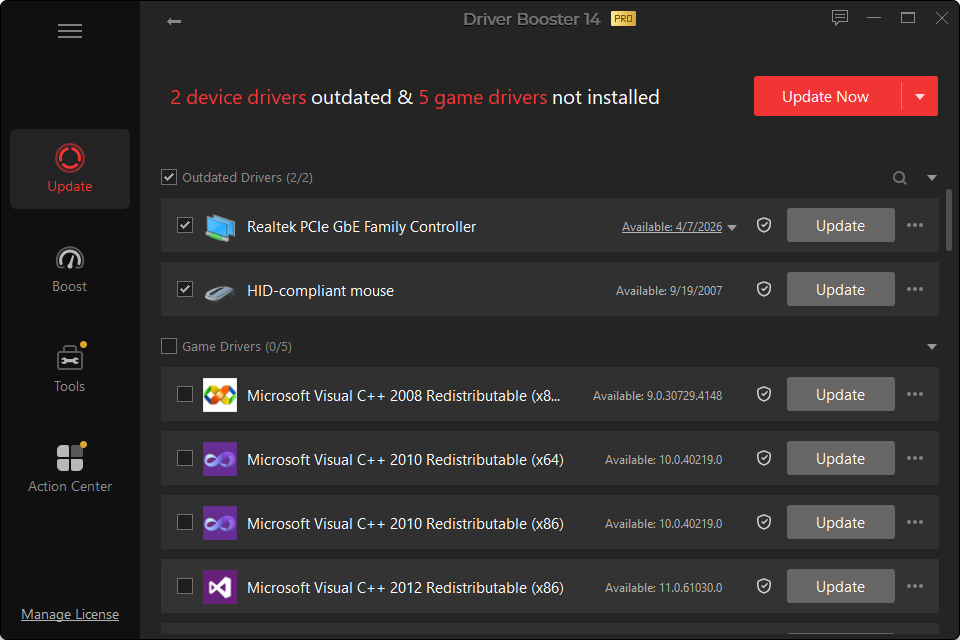
Graphics drivers are among the most frequently updated drivers on a Windows PC. They affect games, video acceleration, 3D applications, display output and power behavior.
They are also one of the driver categories most likely to reveal a regression quickly, because a bad change can cause black screens, crashes, flickering or reduced performance.
When a Graphics Driver Update Makes Sense
Update when:
- a game requires a newer driver;
- a known graphics bug affects you;
- the current driver crashes or resets;
- Windows is using Microsoft Basic Display Adapter;
- a professional graphics application requires a newer release;
- the new driver contains a security or compatibility fix relevant to your GPU.
When You Can Leave It Alone
If the PC is stable, your applications work and the new driver adds nothing you need, there is no requirement to update merely because the version number is higher.
NVIDIA, AMD and Intel
Driver Booster can detect supported updates for all three major Windows graphics ecosystems.
However, the GPU vendor’s own release notes can be especially useful when you need to know whether a specific game, GPU model or bug is addressed. For a gaming PC, the most current driver is often desirable around major game launches, but it should still be tested on your system.
Safe GPU Update Checklist
- Save open work.
- Note the currently installed driver version.
- Keep a rollback or restore path.
- Close games and GPU-heavy applications.
- Install the selected driver.
- Expect the display to blink or reset during installation.
- Restart if requested.
- Test the same game/application that motivated the update.
If the Screen Goes Black
A temporary black screen during driver replacement can be normal. A persistent black screen after reboot is not.
Try:
- waiting briefly to ensure installation has finished;
- reconnecting the monitor cable;
- trying a different display output;
- booting into Safe Mode;
- rolling back the display driver;
- using System Restore if the issue began immediately after the update.
Do not repeatedly install newer drivers over a broken graphics stack without first restoring a known working state.