
On this page
Interface previews
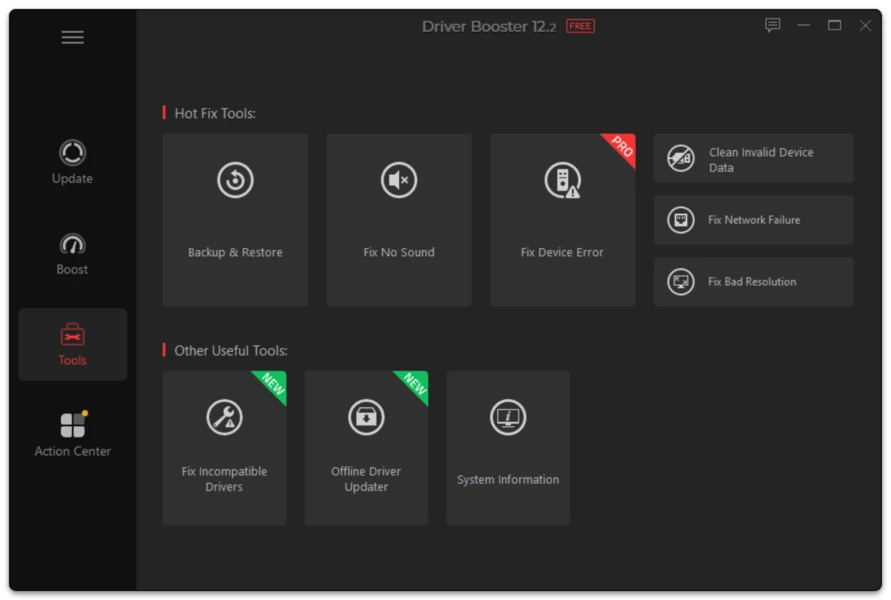
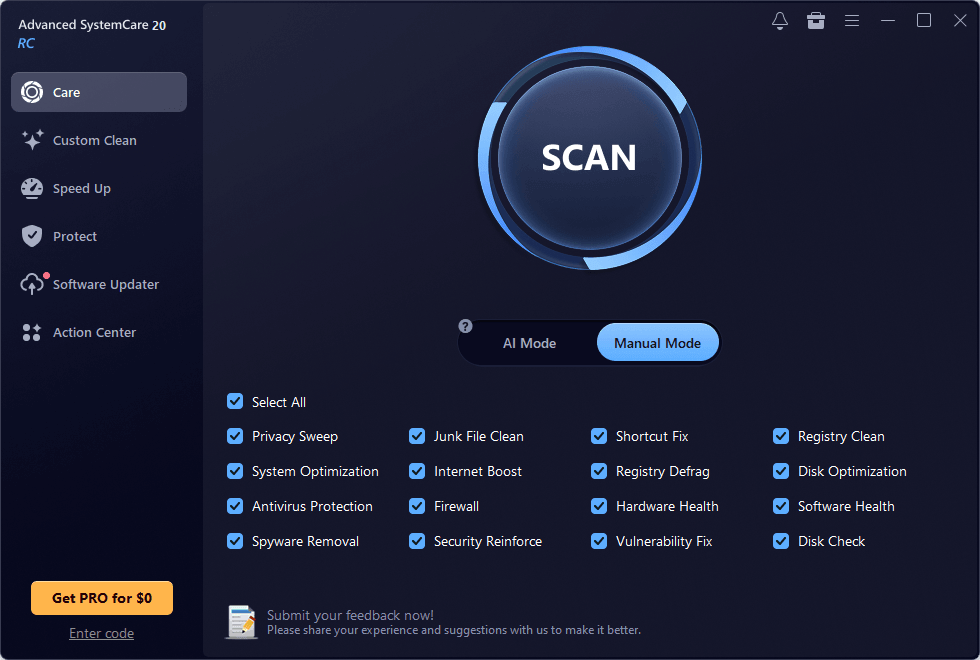
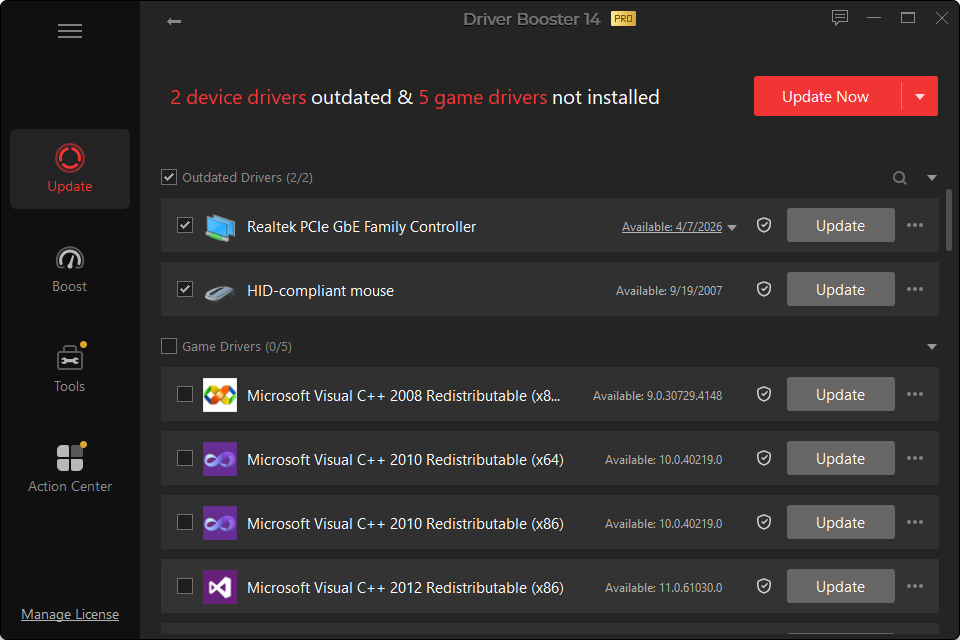
If audio disappeared immediately after a driver update, the new package is a strong suspect—but confirm the output device before rolling anything back.
Step 1: Check the Selected Output
Windows can switch to a monitor, HDMI output, Bluetooth device or another endpoint during a driver change.
Open the volume/output selector and choose the speakers or headphones you actually use.
Step 2: Restart the PC
Some audio stacks do not initialize correctly until a full restart.
Step 3: Check Device Manager
Open Sound, video and game controllers and Audio inputs and outputs.
Look for:
- warning symbols;
- missing audio hardware;
- generic replacement devices;
- disabled devices.
Step 4: Roll Back the Driver
If the problem began immediately after the update and rollback is available:
Device Manager > device > Properties > Driver > Roll Back Driver
Restart and test again.
Step 5: Restore the Previous Driver
If Driver Booster backed up the prior version, use its restore function. If several system changes were made together, System Restore may be more appropriate.
Step 6: Check OEM Audio Components
Laptop audio may depend on multiple components. Restoring only one Realtek package may not restore a missing OEM enhancement or companion service.
Do Not Keep Updating Random Drivers
Once you have a clear “before and after” event, preserve that diagnostic signal. Replacing chipset, Bluetooth and graphics drivers at the same time makes the original audio problem harder to isolate.