
On this page
Interface previews
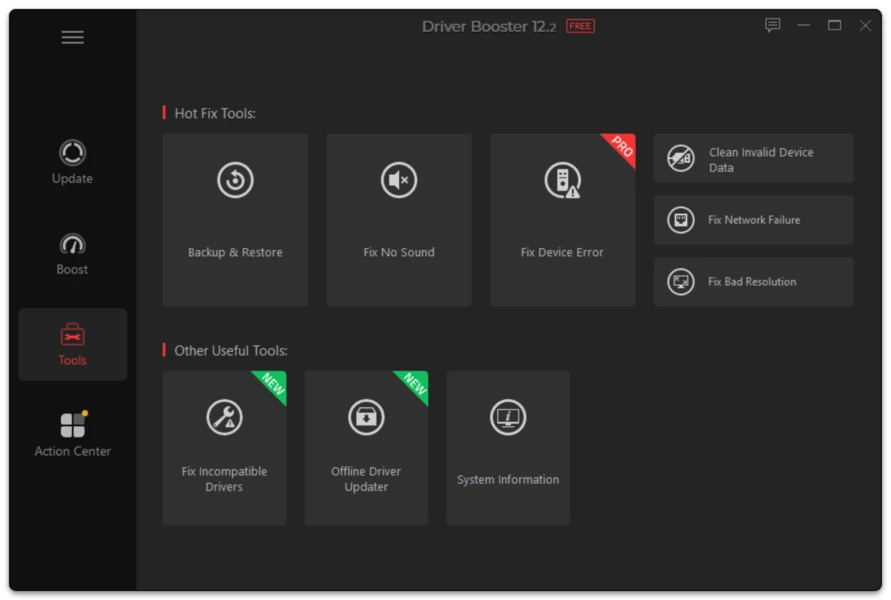
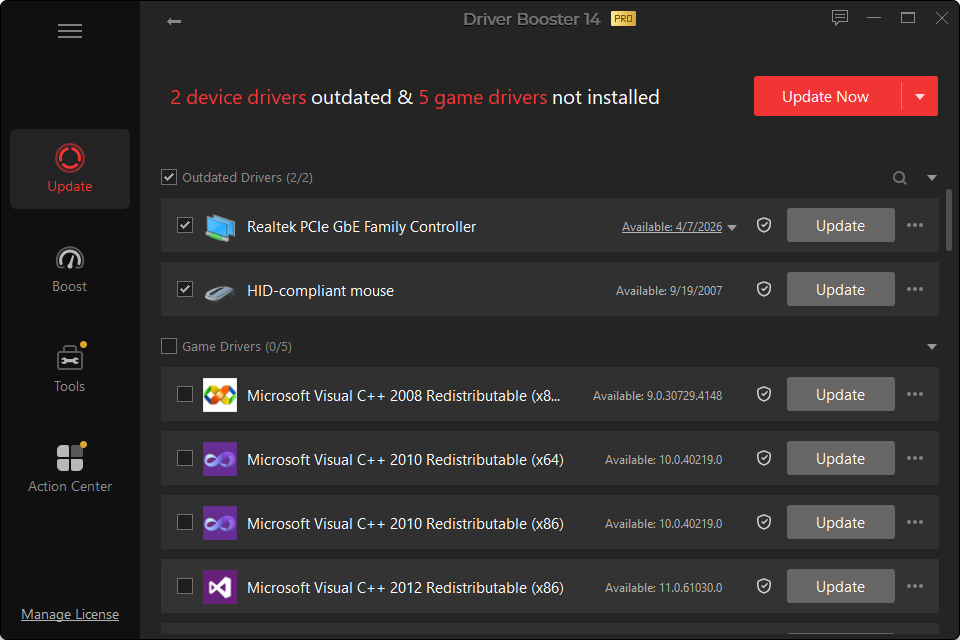
Audio problems are commonly blamed on drivers, but Windows sound depends on several layers: the hardware driver, audio services, output-device selection, enhancements, application settings and sometimes manufacturer-specific software.
Update the Audio Driver When
- the audio device shows an error in Device Manager;
- sound disappeared after reinstalling Windows;
- the PC only shows a generic output device;
- crackling or dropouts began after a Windows change;
- a known driver update fixes your model.
Check the Simple Things First
Before replacing the driver:
- confirm the correct output device is selected;
- check mute and volume;
- reconnect USB/Bluetooth audio devices;
- restart the Windows Audio service if appropriate;
- test another application;
- check whether headphones/speakers work on another device.
Realtek and Laptop Audio
Many laptops use Realtek hardware with OEM-specific tuning or companion components. A generic driver may provide basic audio while removing custom features such as jack detection, microphone processing or speaker enhancements.
On a laptop, be more conservative when the existing audio package works correctly.
After Updating
Test:
- built-in speakers;
- headphone jack;
- microphone;
- Bluetooth audio;
- volume keys;
- audio enhancements;
- sleep/wake behavior.
If one of these breaks, a rollback may be more useful than installing another unrelated driver.