
On this page
Interface previews
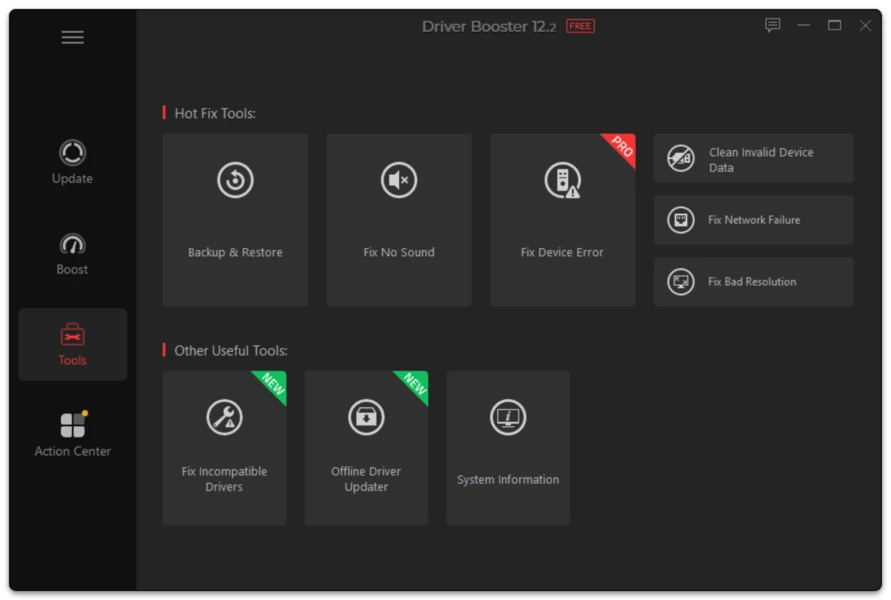
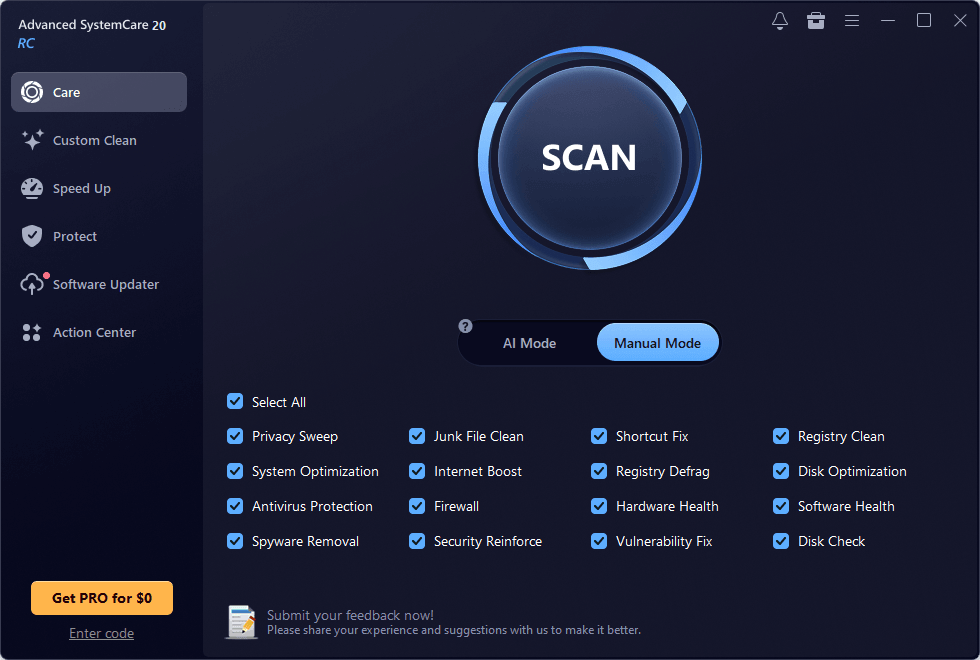
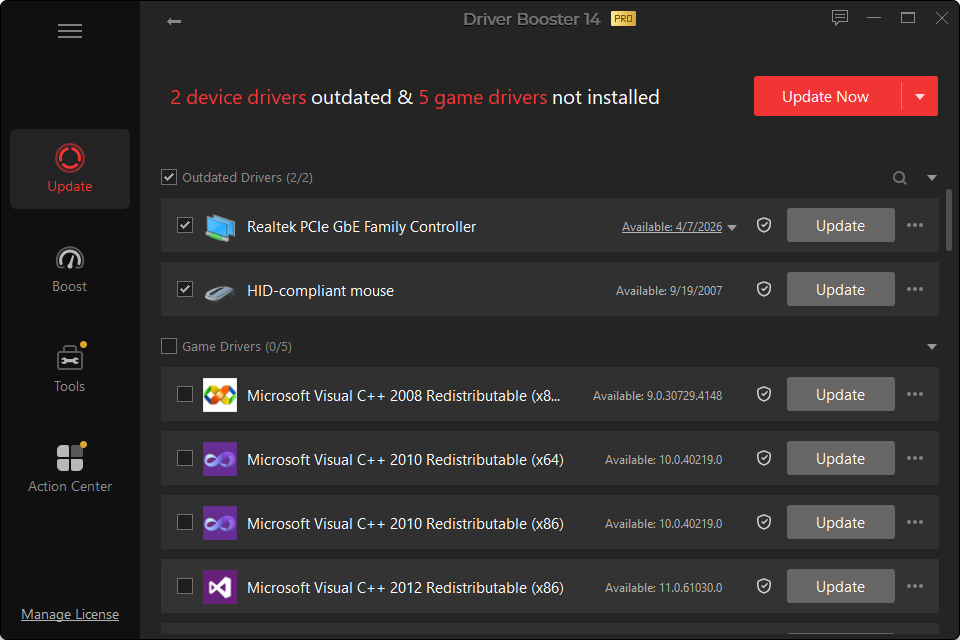
Most users should run the current supported Driver Booster build. Older releases are mainly useful for troubleshooting, compatibility research or understanding when a feature changed.
Do not confuse an older Driver Booster application version with an older hardware driver. They are separate things.
Recent Driver Booster Release History
Recent tracked builds include:
| Version | Date |
|---|---|
| 14.0.1.462 | September 24, 2026 |
| 14.0.0.444 | September 16, 2026 |
| 13.6.0.438 | August 3, 2026 |
| 13.5.1.400 | July 15, 2026 |
| 13.5.0.359 | June 16, 2026 |
| 13.4.0.234 | April 24, 2026 |
| 13.3.0.229 | March 24, 2026 |
| 13.2.0.184 | January 8, 2026 |
| 13.1.0.171 | November 2025 |
| 13.0.x | September 2025 |
Dates and intermediate builds can differ by distribution channel, so the current version panel on this site should remain centralized.
Why Would Someone Need an Older Version?
An older application build may be useful if a new interface or program update has a confirmed compatibility problem on a specific system.
An older device driver is more commonly useful. For example, if a new GPU or audio driver introduces crashes, rolling that particular driver back may solve the problem without downgrading the Driver Booster application.
Risks of Old Builds
Older software can lack:
- recent bug fixes;
- compatibility with new Windows changes;
- newer hardware matches;
- security fixes;
- updated driver catalogs.
Do not download an old build simply because it is smaller or because a forum comment from years ago says it was “best.”
Use Rollback Before Downgrading Everything
If your problem started immediately after one driver update, the cleanest response is usually to roll back that driver first. Downgrading the whole utility adds another variable and may not address the cause.