
On this page
Interface previews
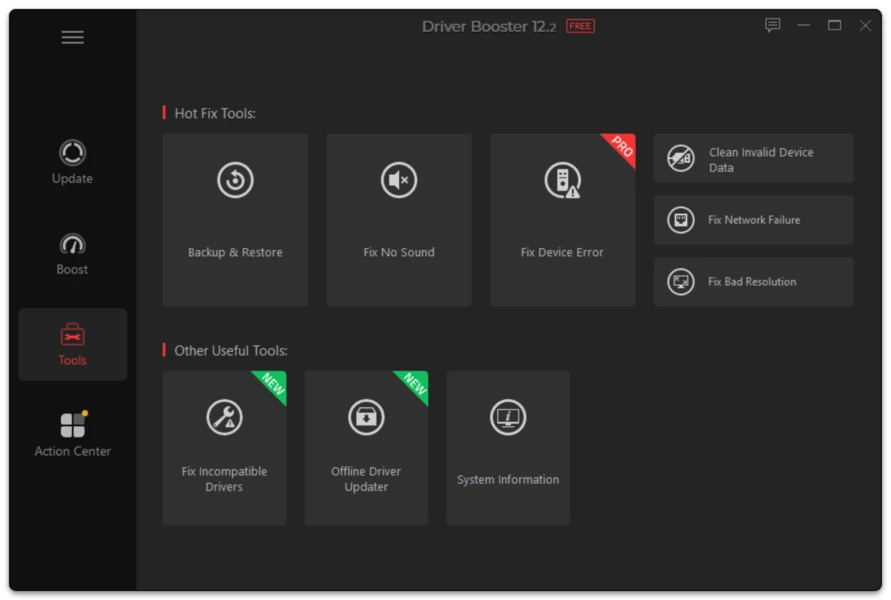
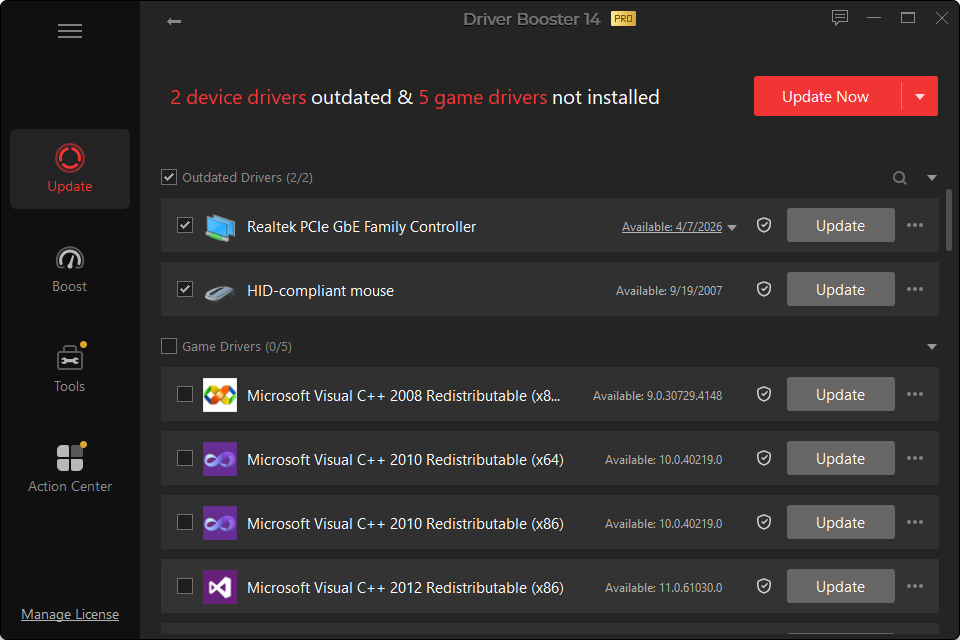
The hardest driver problem after reinstalling Windows is often a missing network adapter driver. Without Wi-Fi or Ethernet, the PC cannot easily download the package needed to restore connectivity.
Driver Booster PRO includes offline network-driver functionality designed for this kind of repair.
When Offline Updating Is Useful
- Windows was freshly installed and no network adapter works.
- A network-driver update failed and connectivity is gone.
- The PC is being repaired in a location without internet access.
- A network package needs to be prepared on another computer.
What “Offline” Does Not Mean
It does not mean the program can magically obtain new drivers without any online source ever being used. Driver packages have to be acquired somewhere. An offline workflow typically means preparing the needed data/package on a connected system and moving it to the offline PC.
Alternative Recovery Methods
If you do not have the required PRO feature:
- use another connected device;
- identify the PC or network-adapter model;
- download the appropriate Windows driver;
- copy it with USB storage;
- install it on the offline machine.
For a laptop, the PC manufacturer’s network package is often the most predictable first recovery choice.
Avoid “Driver Packs” From Unknown Sources
Large offline driver collections can be convenient but create a trust and matching problem. A huge archive does not guarantee that the package selected for your exact hardware revision is appropriate.
For an offline repair, prioritize correct identification over volume.