
On this page
Interface previews
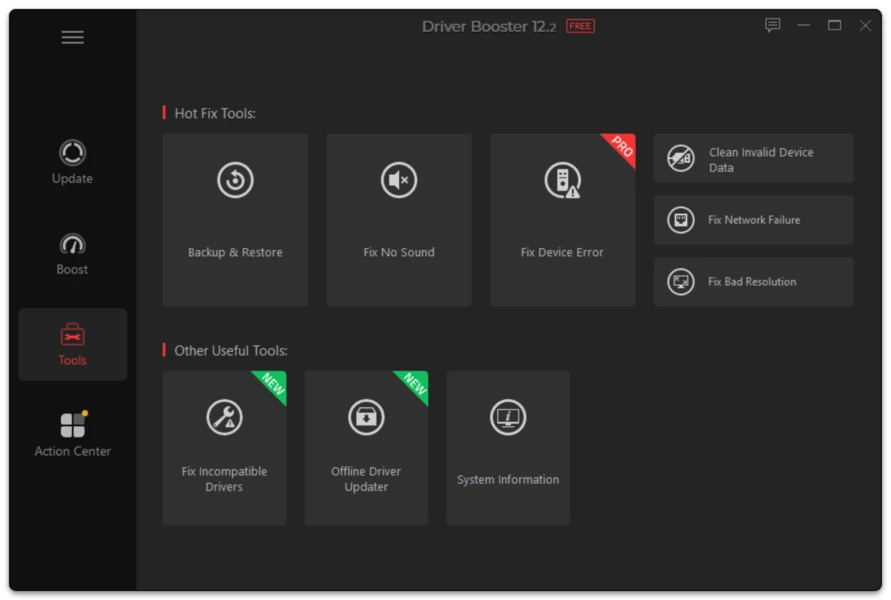
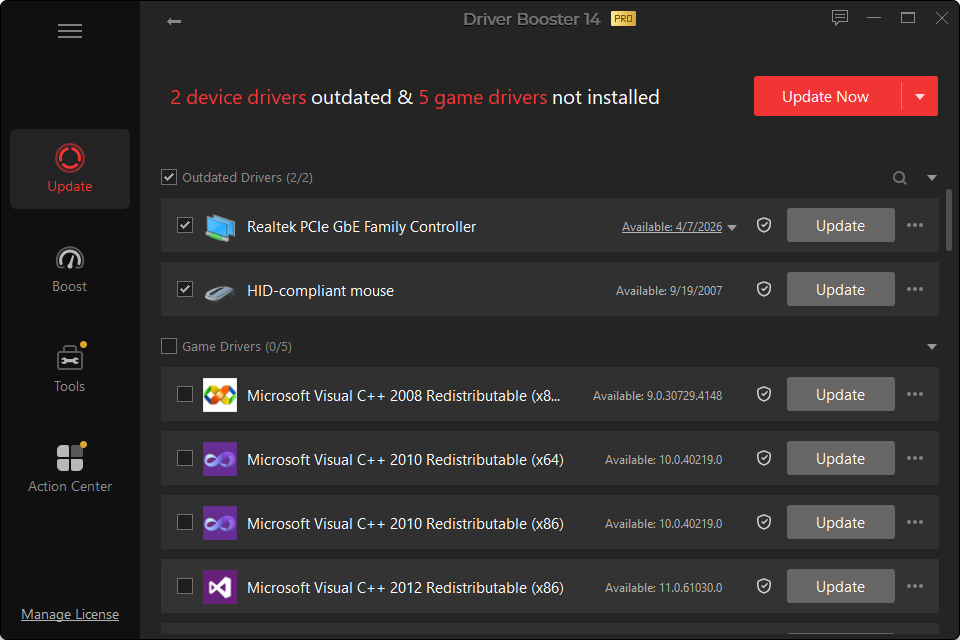
Driver Booster is a legitimate driver-management application, but calling any driver updater “completely risk-free” would be misleading. The application itself and the driver changes it performs are separate risk questions.
The program’s purpose is to detect and install device drivers. A correctly matched update can fix hardware problems or add compatibility. A driver that behaves badly on one PC can also cause display, audio, network, sleep or stability problems.
So the useful answer is: Driver Booster can be used safely when driver changes are reviewed and recovery options are kept available. Do not treat every scan result as a mandatory update.
What Can Go Wrong With Driver Updates?
A newer driver has a regression
Software can introduce bugs. A new graphics driver might fix one game while creating instability in another.
Generic and customized drivers can differ
Laptop manufacturers sometimes customize audio, power-management, touchpad, camera or chipset packages. A generic update can remove or alter OEM-specific behavior.
Updating many devices at once hides the cause
If you replace graphics, audio, network and chipset drivers together and Windows becomes unstable, you now have four suspects.
Recovery is harder without preparation
A network-driver problem is more inconvenient if you did not keep an offline recovery option. A display issue is more stressful if you do not know how to enter Safe Mode or roll back the driver.
Five Rules for Safer Use
1. Update for a reason
Missing driver? Update it. Known graphics bug? Update it. New game requires a newer GPU version? Update it.
“An update exists” is not by itself a strong reason.
2. Check the device name
If the detected hardware name looks wrong or unusually generic, investigate before installing.
3. Protect critical categories
Graphics, chipset, storage and networking can have system-wide effects. Change them more carefully than a low-risk peripheral.
4. Keep recovery available
Use restore points, driver rollback and backup options.
5. Test immediately after restart
Check the affected device before moving to another update.
Is a WHQL Driver Guaranteed to Work?
No certification can guarantee perfect behavior on every possible PC configuration. Windows Hardware Quality Labs (WHQL) signing/testing is useful evidence that a driver went through Microsoft’s compatibility process, but hardware combinations, OEM customizations and application-specific bugs still exist.
Is Driver Booster Better Than Manual Updating?
It is faster for broad scanning. Manual updating can provide greater control for one specific device.
For example, a technician troubleshooting one graphics card can precisely select the vendor’s desired driver. A user rebuilding a PC with several unknown devices may benefit more from a broad scan.
Does Driver Booster Contain Malware?
Do not judge any executable solely by a website claim. Use Windows security checks, verify the publisher shown by Windows, keep the operating system’s security protections active and review installer prompts.
This website should never use fabricated “virus-free” badges or claim that a file has been scanned unless the file was actually checked and the date/method are shown.
Is It Safe to Update All Drivers at Once?
Batch updating is convenient but less diagnostic. On a stable machine, there is little advantage to changing many unrelated drivers simultaneously.
If a computer is being repaired, update the affected category first.
When Should You Avoid a Third-Party Driver Updater?
Use extra caution when:
- the PC is a managed business device;
- your organization controls approved drivers;
- the machine uses specialized industrial hardware;
- the laptop manufacturer requires custom platform packages;
- the PC is currently stable and a proposed low-level update provides no benefit you need.
Bottom Line
Driver Booster is a tool, not a guarantee. Used selectively, it can simplify driver maintenance. Used as an automatic “replace everything” button, it adds unnecessary variables to a system that may already be working correctly.
The safest workflow is scan → review → recoverability → selected update → restart → test.