
On this page
Interface previews
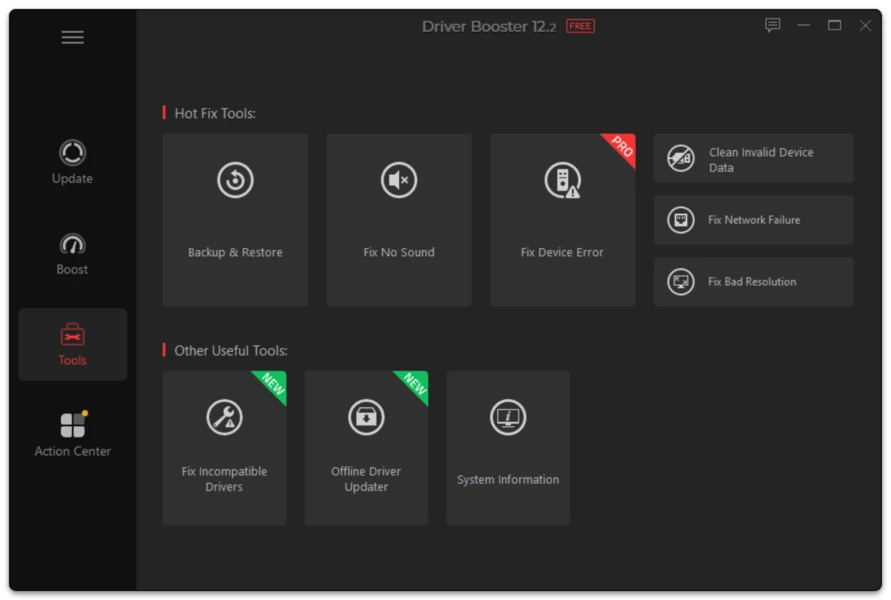
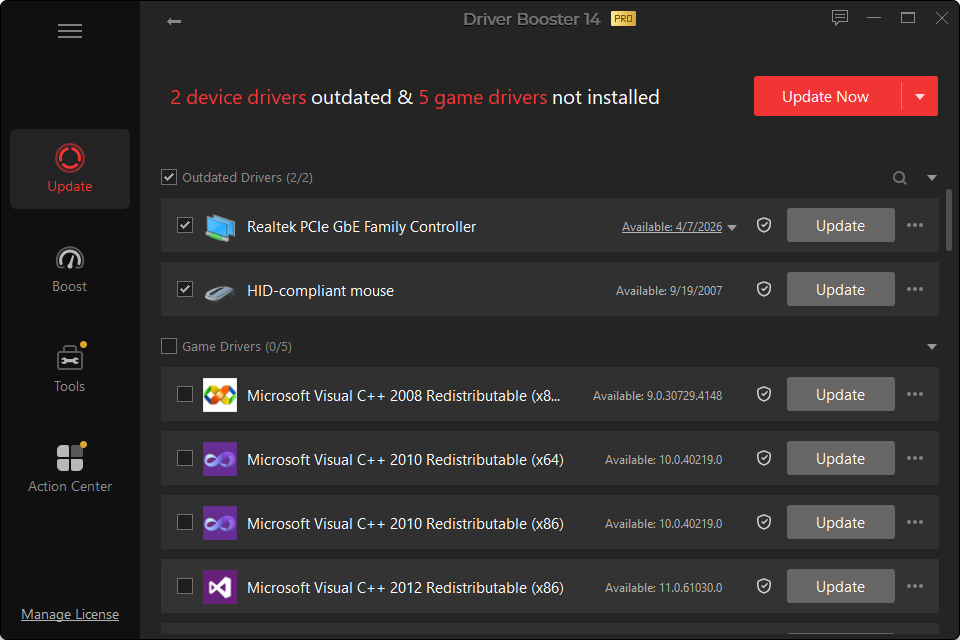
A driver update can solve one problem and introduce another. Windows and Driver Booster provide several recovery routes, and they do different things.
Option 1: Driver Roll Back
Use rollback when Windows still retains the previous package for that device.
In Device Manager:
- open the affected device;
- select Properties;
- open the Driver tab;
- choose Roll Back Driver if available;
- provide a reason if Windows asks;
- restart.
Driver Booster can also expose rollback options for supported devices.
Option 2: Driver Restore
A restore is useful when you previously backed up the driver. Driver Booster’s backup/restore functions can retain earlier versions for reinstallation. Automatic backup features vary by edition.
Option 3: System Restore
System Restore reverts a broader set of Windows system changes to an earlier restore point.
Use it when:
- multiple drivers changed together;
- Windows became unstable after a batch update;
- the exact failing device is unclear.
Be aware that System Restore can undo other system/software changes made after the selected restore point.
Symptoms That Justify Rollback
- black screen or display corruption after GPU update;
- network disconnects after adapter update;
- crackling/no audio after audio update;
- Bluetooth devices vanish;
- sleep/wake problems appear;
- a previously stable game begins crashing immediately after a graphics update.
After Recovery
Once the previous driver is working:
- do not immediately reinstall the same problematic version;
- note the device and bad version;
- wait for a newer fix or choose a different supported release;
- if version 14 presents multiple options, consider the stability-oriented alternative.