
On this page
Interface previews
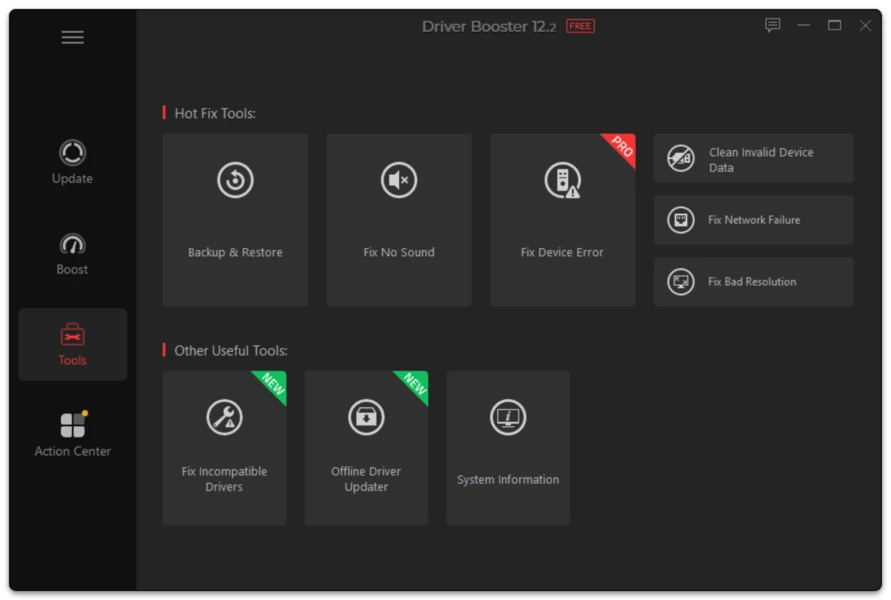
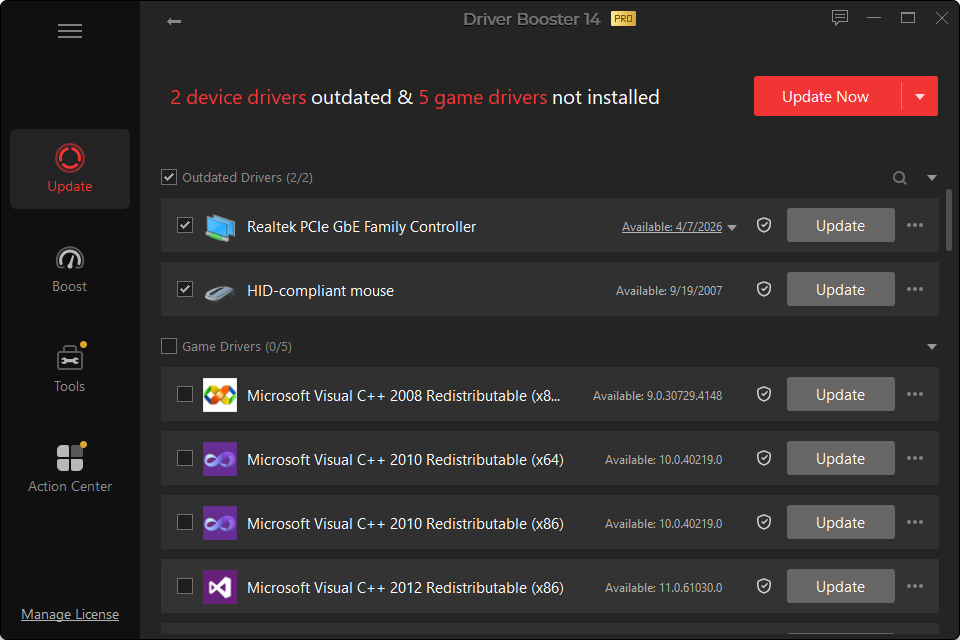
Windows 11 can obtain many hardware drivers automatically through Windows Update, but not every manufacturer releases every current package through the Windows Update channel at the same time. Driver Booster provides a second way to scan hardware and view available driver updates from one interface.
Use it as a complement to Windows maintenance, not as a reason to replace working drivers without a purpose.
Start With Windows Update
Before using a third-party driver scanner on a new Windows 11 installation:
- Open Settings > Windows Update.
- Install normal Windows updates.
- Restart if requested.
- Check Advanced options > Optional updates for available driver packages.
- Open Device Manager and look for devices with warning icons.
If hardware is still unresolved or you need a newer driver than Windows is offering, Driver Booster can broaden the search.
Windows 11 Driver Categories Worth Checking
Graphics
Graphics drivers change frequently. Update when a game/application needs a new release, when a known bug affects you, or when the current driver crashes.
Audio
Do not replace a customized laptop audio package casually. Some PCs use vendor enhancements tied to a particular driver branch.
Wi-Fi and Ethernet
A current network driver can resolve disconnects or compatibility problems, but keep a rollback route because a failed update can temporarily remove connectivity.
Bluetooth
Bluetooth problems can involve the radio driver, a chipset package, Windows services or the peripheral itself. Updating the driver is only one diagnostic step.
Chipset
Chipset packages affect low-level device identification and platform functions. On laptops and prebuilt desktops, compare the PC manufacturer’s support path before replacing specialized platform packages.
Windows 11 ARM64
Driver Booster 14 supports Windows 11 on ARM64.
To check your system architecture:
Settings > System > About > System type
If Windows reports an ARM-based processor, use drivers that explicitly support ARM64. Do not assume an x64 driver package is interchangeable.
When Not to Update
Skip an optional driver when:
- the device works correctly;
- the proposed version provides no fix or feature you need;
- the package is for a generic device but your PC relies on a customized OEM driver;
- the driver targets a different Windows architecture or hardware revision.
Recovery on Windows 11
If a driver causes trouble:
- open Device Manager;
- locate the affected device;
- open Properties > Driver;
- use Roll Back Driver when available;
- otherwise restore a backed-up version or use System Restore;
- reboot and test.
The dedicated Restore Driver Updates guide explains the options in more detail.